 CI VisionChadwick International
Close your laptop.
The screen keeps going.
Slides, notices, videos and the lunch menu — on every school screen, from any browser.
01How it works
Make it
In New Content, or from a Template.
Pick screens
One, or twenty.
It plays
Each screen rotates through its items.
One copy of each item: edit it in My Content and every screen updates. AirPlay still works exactly as before.
02Get set up
No install. Any browser, any device.
- Go to ci-vision.orgBookmark it.
- Sign in with GoogleYour @chadwickschool.org account.
- Open DisplaysYour screens are already there.

This guide on your phoneFor when you're at the TV.
Email [email protected] with the room number — usually added the same day.
03What you can put up
- In Slides: Share → Anyone with the link → Viewer
- Copy the presentation's URL
- New Content → Google Slides, paste it, tick your screens
Edit the deck later and the screens follow — nothing to re-upload.
Google Slides
Paste the link. Your edits follow.
Every page becomes a slide.
YouTube
Plays through, then hands back.
Video or image
Straight from your computer or phone.
Announcement
Text on a designed board.
Countdown
Big numbers. Removes itself at zero.
Calendar
By hand, or a Google Calendar feed.
Not sure?
Slides for anything you keep editing. Template for a notice.
Screens face students and visitors, and your name shows on the item. An admin can fix or remove anything you made — you aren't told when they do, so ask if a board looks different.
04Calendar boards
- In Google Calendar: Settings → your calendar → Integrate calendar
- Copy the address in iCal format
- Paste it into the board's Google Calendar URL field
Events then stay up to date on their own, every 30 minutes.
Thursday, September 18
Show on screen → Today only — moves on at midnight by itself.
Show on screen → All days — every event names its day.
Too many to fit? They scroll, then start again at the first.
05When it shows
Always
Whenever it's assigned.
Date range
Up on the first day, gone after the last.
Weekly
Chosen days and hours, every week.
Outside its window it sits out of the rotation, marked Scheduled in the screen's panel.
06Your screens
Click a screen in Displays.
Live Preview
What the TV is playing right now.
Rotation
Drag to reorder, Play Now, or Remove from this screen.
Reload screen
Frozen? Restart it from here — no room visit.
The dot
Green is online; grey means the TV is off.
08Templates & lunch
80+ school designs, and two lunch boards that keep themselves current.
Templates — change the words and publish. Then it behaves like anything else.
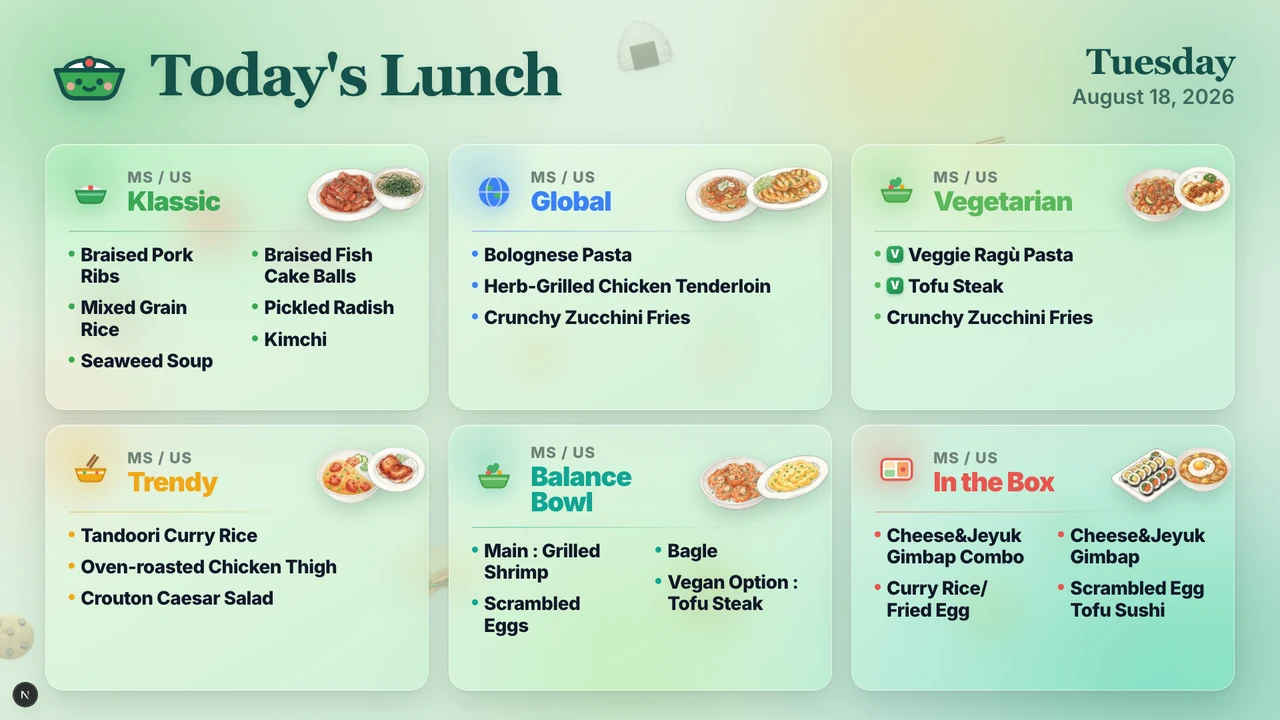
Lunch menu — + Add to My Content, assign once. Right menu, every day.
09Live Cast
AirPlay covers one TV. Live Cast covers every screen you pick — for assemblies and announcements.
- Open Live CastOn the computer you're presenting from.
- Choose the screensOne, or twenty at once.
- Start castingStop when you're done; every screen returns on its own.
Not in your sidebar?
It's switched on per person — email the Technology Office. For your own room, AirPlay is quicker anyway.
10At the TV
- Find CI Vision on the Apple TV home screenScroll all the way down the app list.
- Open it and walk awayIt reconnects and plays that room's items.
A six-character code on the TV?
A new screen. In Displays → + Set up a new TV, type the code and pick the room.
11Quick answers
| What you see | What to do |
|---|---|
| A screen you use isn't listed | Email the Technology Office with the room number. |
| New item isn't on the TV yet | It may still be preparing, or outside its schedule — check the Scheduled badge. |
| Screen is frozen or blank | Open its panel and press Reload screen. |
| Slides deck shows old content | Edits sync within about 30 minutes; save the item again to push it sooner. |
| Someone asked to change my item | Approve or decline in Requests. It only affects that one screen. |
| My calendar shows the whole week | Set Show on screen to Today only. |
| The TV is on the Apple TV home screen | Open CI Vision from the app list; it reconnects itself. |
| Someone is mirroring over the signage | Normal — it returns when they disconnect. |
| Something else | Ask the CI Hub AI Support tab, or email [email protected]. |